When a team uses several coding agents, the costs and activity can be hard to track. Each developer works on their own machine, often with different models and tools.
The AgentMon central dashboard puts the reported usage in one place so you can see what the team is spending and where it is being spent.
Devices running AgentMon Start send usage data to the organization they have joined. The dashboard shows costs, sessions, tool errors, and security finding counts. Conversations and prompts stay on the device.
Check Total Spending and Reporting Coverage#
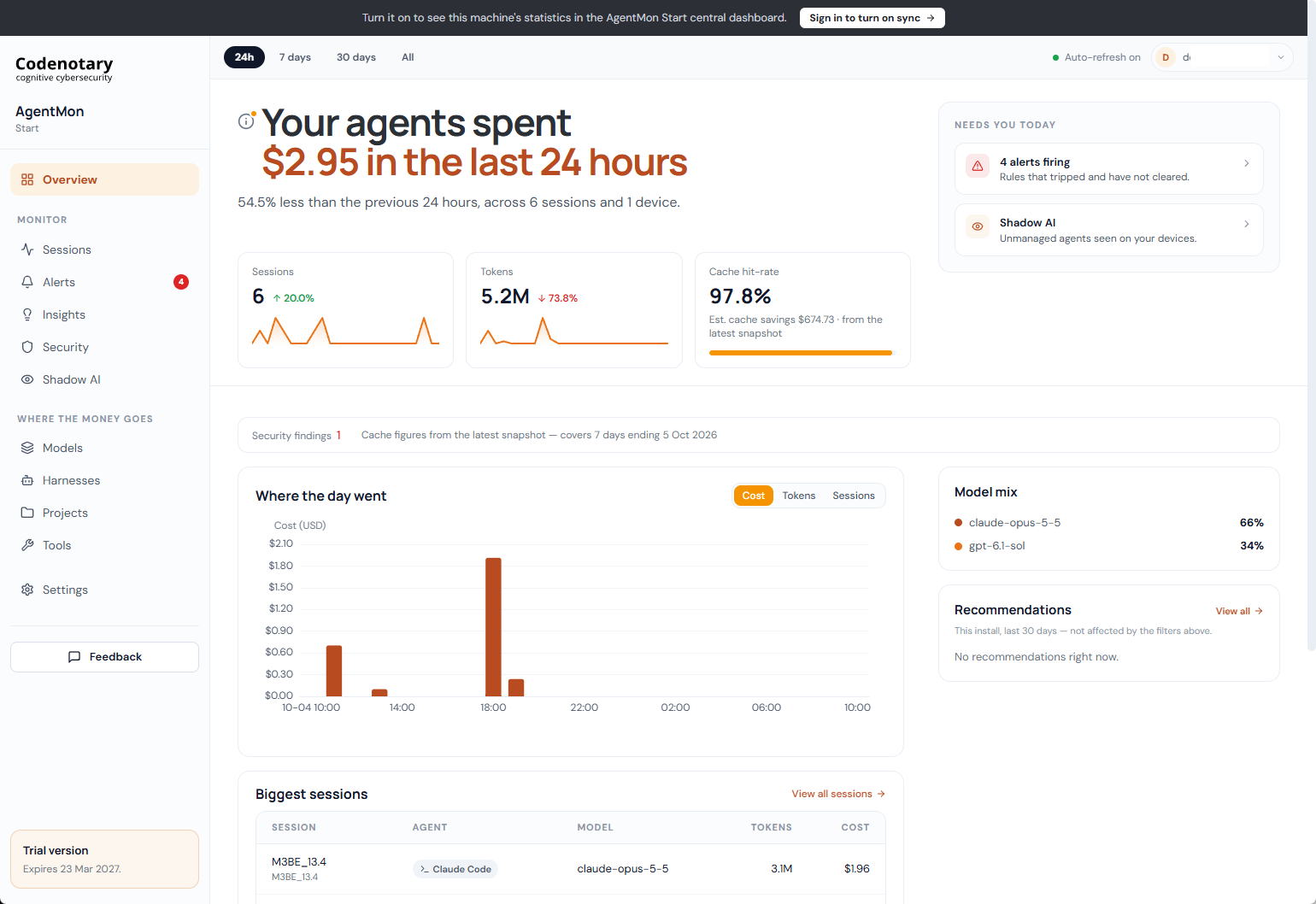
Overview shows the organization’s total spend, session-days, and tokens over the plan’s retention period. It also shows security finding counts, reporting devices, seats used, and the dates covered.
The device count matters: it tells you how many enrolled devices have reported data.
Follow Spending and Activity Over Time#
Switch the Trend chart between cost, tokens, and sessions to see how usage changes over time.
- Spend by developer lists the five highest spenders
- Model mix shows each model’s share of spending
- Recent sessions lists the latest six sessions with their developer, project, model, tokens, and cost
Export CSV downloads the daily trend for use in a spreadsheet or report. From Overview, you can also open Security, the device list in Settings, or all sessions. If spending rises, those pages help you check which activity accounts for the change.
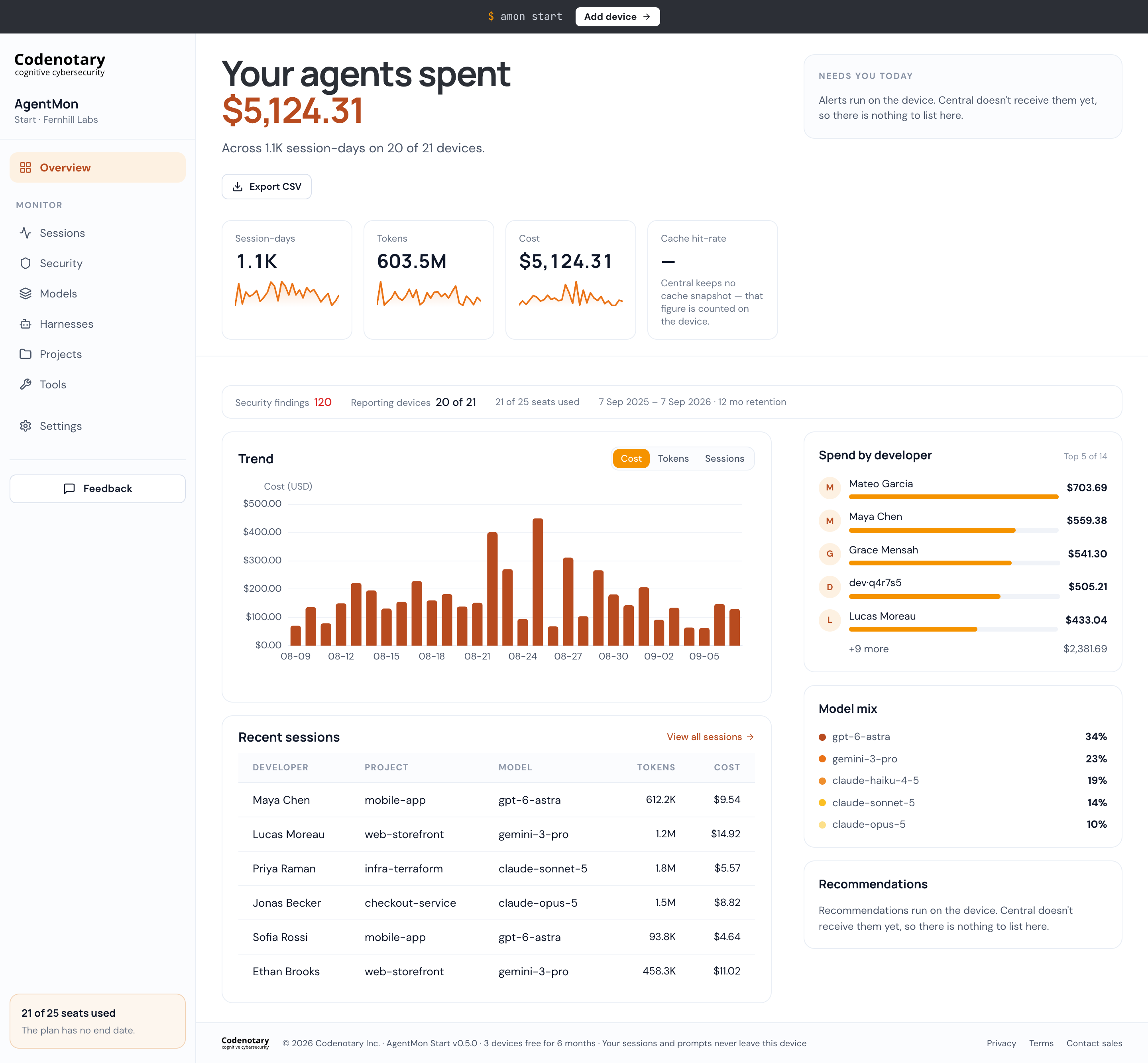
The full Overview page includes recent sessions, spending by developer, and model mix.
Review Agent Work by Repository#
The Sessions page groups agent activity into threads. Each thread represents continuous work on a repository; a gap of more than four hours starts a new one.
Cards show:
- repository and branch (where available)
- status and developer
- harness and model
- cost and the tools called
- token usage, duration, and when the thread was last active
Labels flag tool errors, secret hits, dangerous commands, prompt injection, license findings, and trivial activity.
Real work only hides threads where the agent called no tool and used almost no tokens, and reports how many were hidden. Teams can choose 10, 25, 50, or 100 rows per page to make the list easier to review.
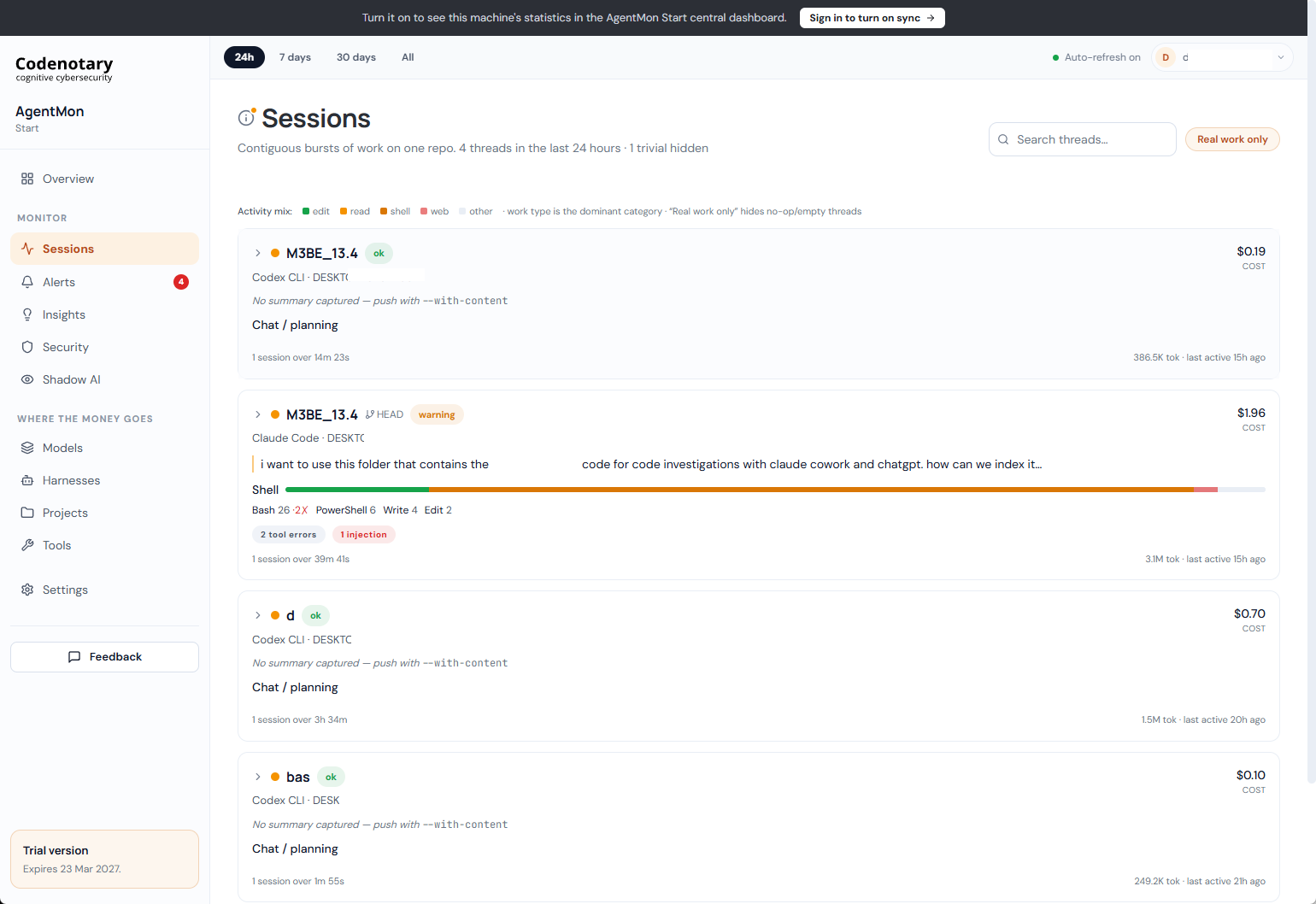
Each thread shows the repository, tools used, cost, and finding counts.
Expand a Thread to See Its Sessions#
Expand a thread to see the sessions it contains. Each row shows the model, start time, duration, tool count, errors, and cost. You can check which sessions account for the cost or tool failures in that thread.
The expanded rows contain session statistics. Conversation traces and summaries are not available in Central, and there is no organization-wide conversation search. To review the conversation, use the machine where it took place.
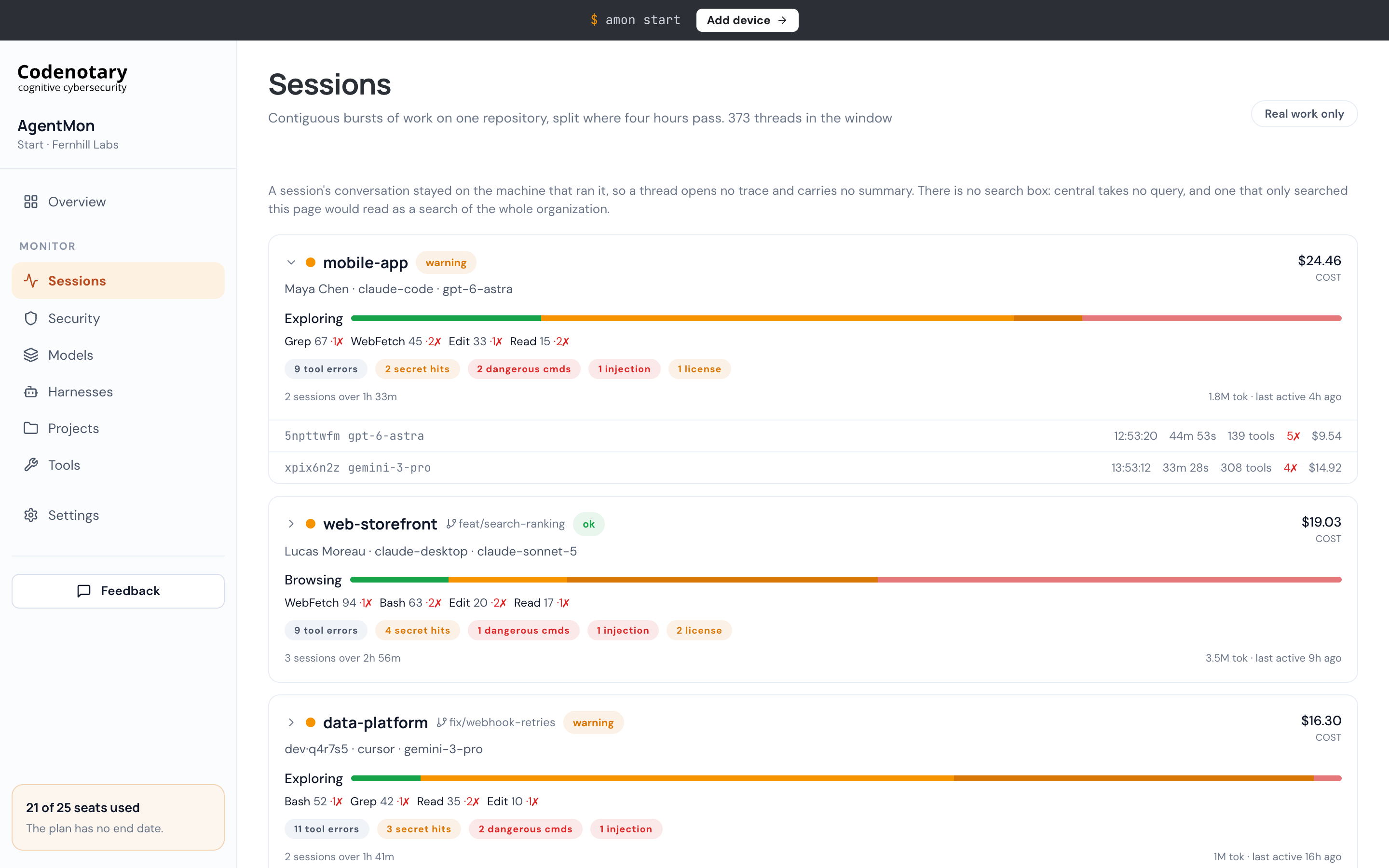
Expanded threads list the timing, tools, errors, and cost of each session.
Review Security Finding Counts#
The Security page rolls up findings reported by devices. It shows:
- all findings
- dangerous commands
- prompt injection
- flagged license or copyright removals
Risk signals by agent type distinguish agent categories and mark autonomous agents. The page also shows the percentage of sessions with findings and a daily breakdown. Every organization member can open Security. Hover over a figure to read what it measures.
Use these counts to spot recurring findings or changes that need a closer look on the devices.
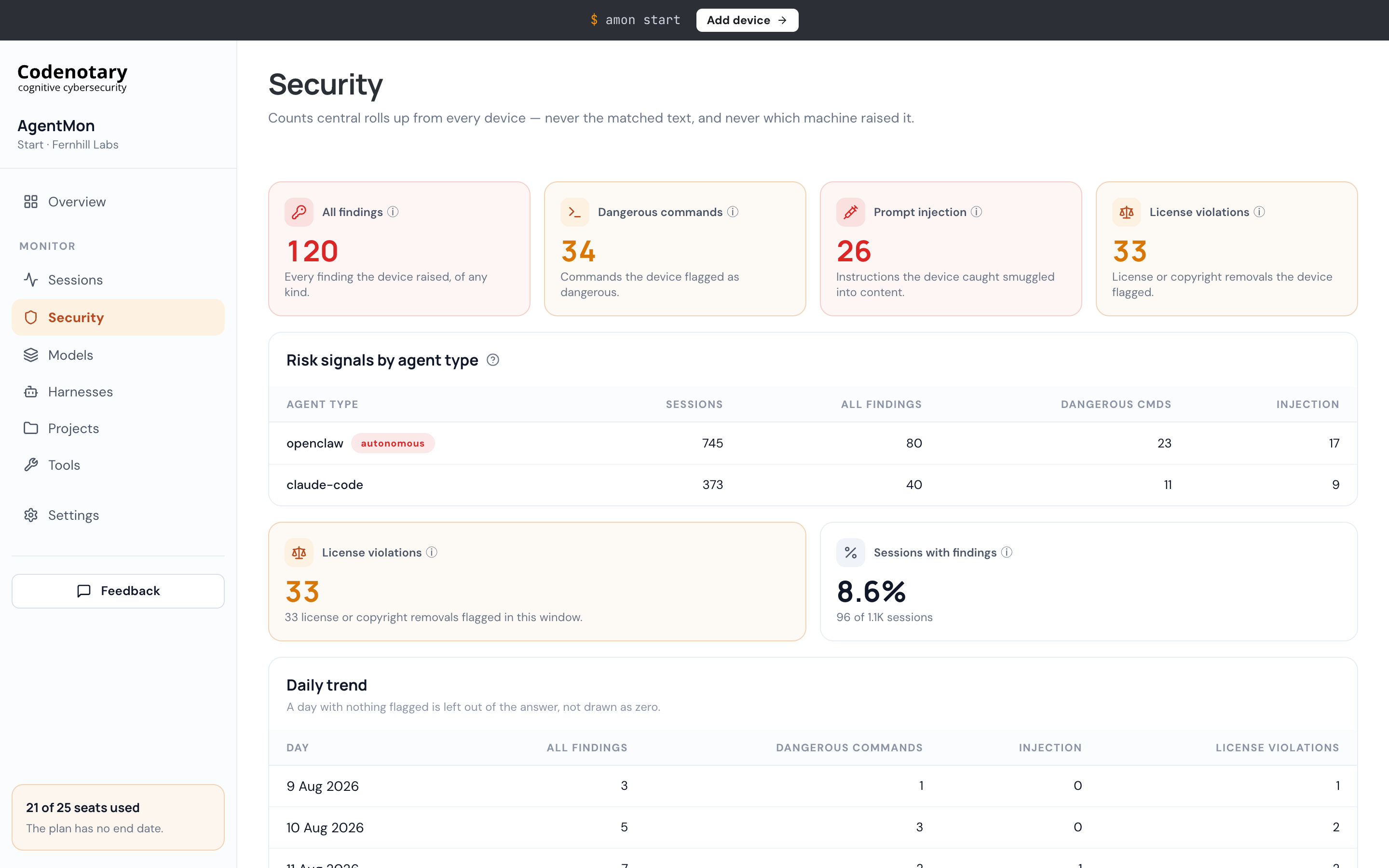
Security shows finding counts by category and agent type, plus the percentage of sessions with findings.
Keep Sensitive Finding Details on the Device#
Central reports aggregate security signals. Matched text, affected files, rule and severity details, and the machine responsible for an individual finding stay on the originating device. Detailed investigation continues locally.
Days with no flagged findings are omitted from the daily trend shown here.
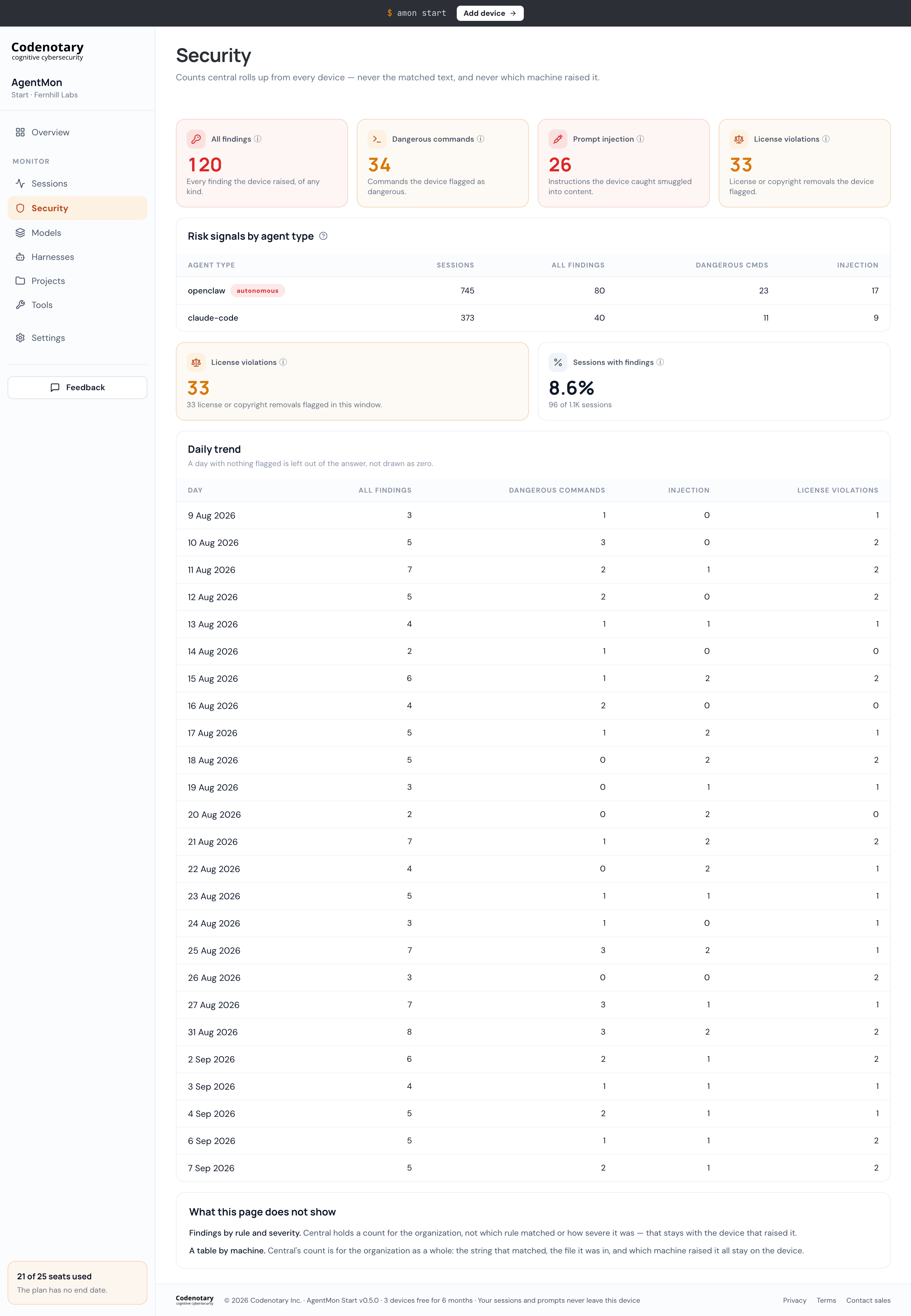
The complete Security page includes the daily trend and explains the limits of central reporting.
Compare Spending Across Models#
The Models page groups sessions, tokens, and cost by model. Top models by cost ranks the ten most expensive, while Spend breakdown shows each model’s share of total spend.
Search the table, sort by any column, and page through results in groups of 25. You can see which models the team uses and how much each one costs.
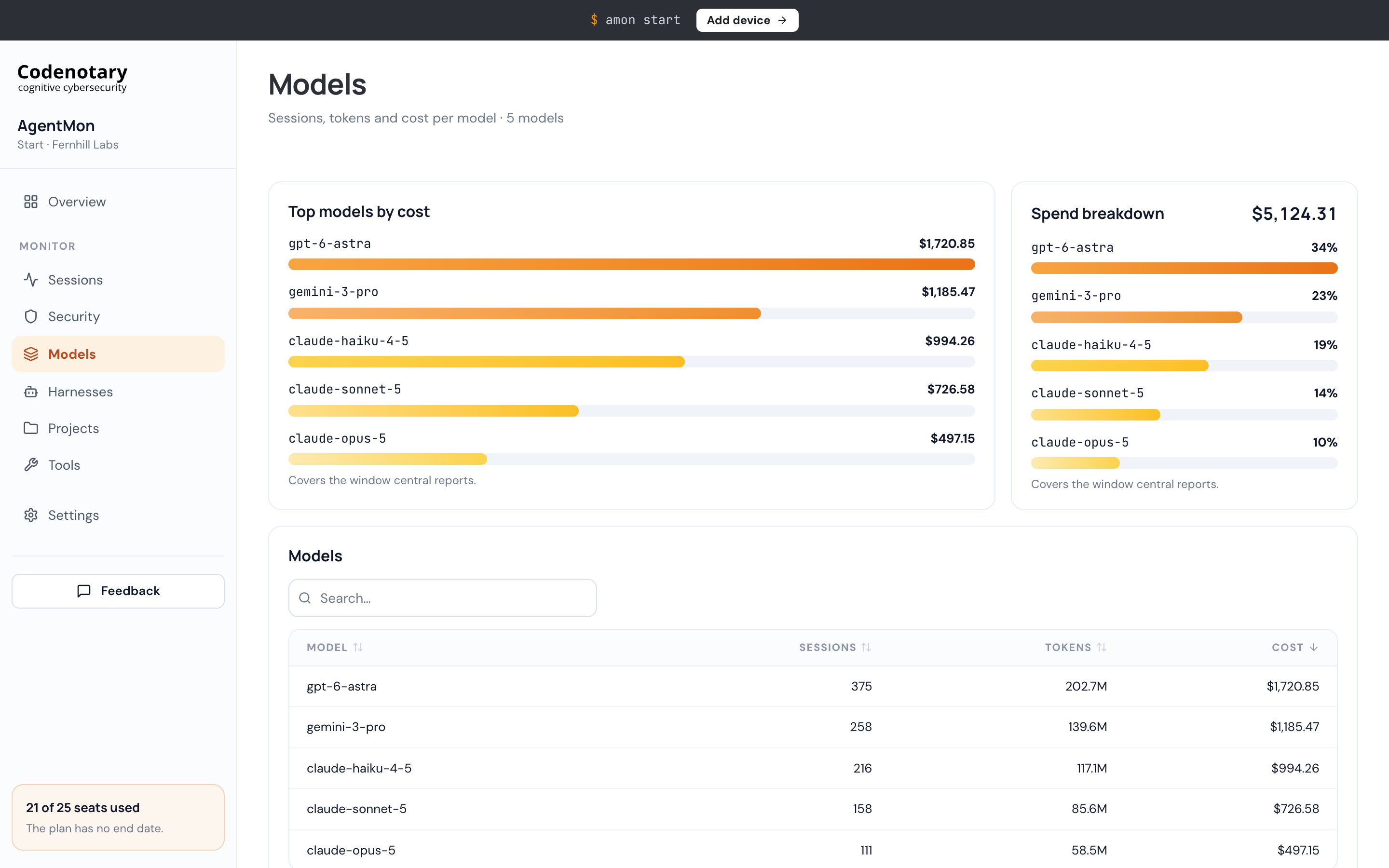
Models shows sessions, tokens, and cost for each model.
Compare Spending by Harness#
The Harnesses page gives the same perspective across agent environments, such as Cursor, Claude Code, Claude Desktop, and Codex CLI. It shows sessions, tokens, and cost per harness, alongside cost rankings and percentage shares of spend.
Search and sort the table to compare usage across harnesses. For example, you can check how much spending comes through Cursor or Claude Code, then use Models to review spending by model.
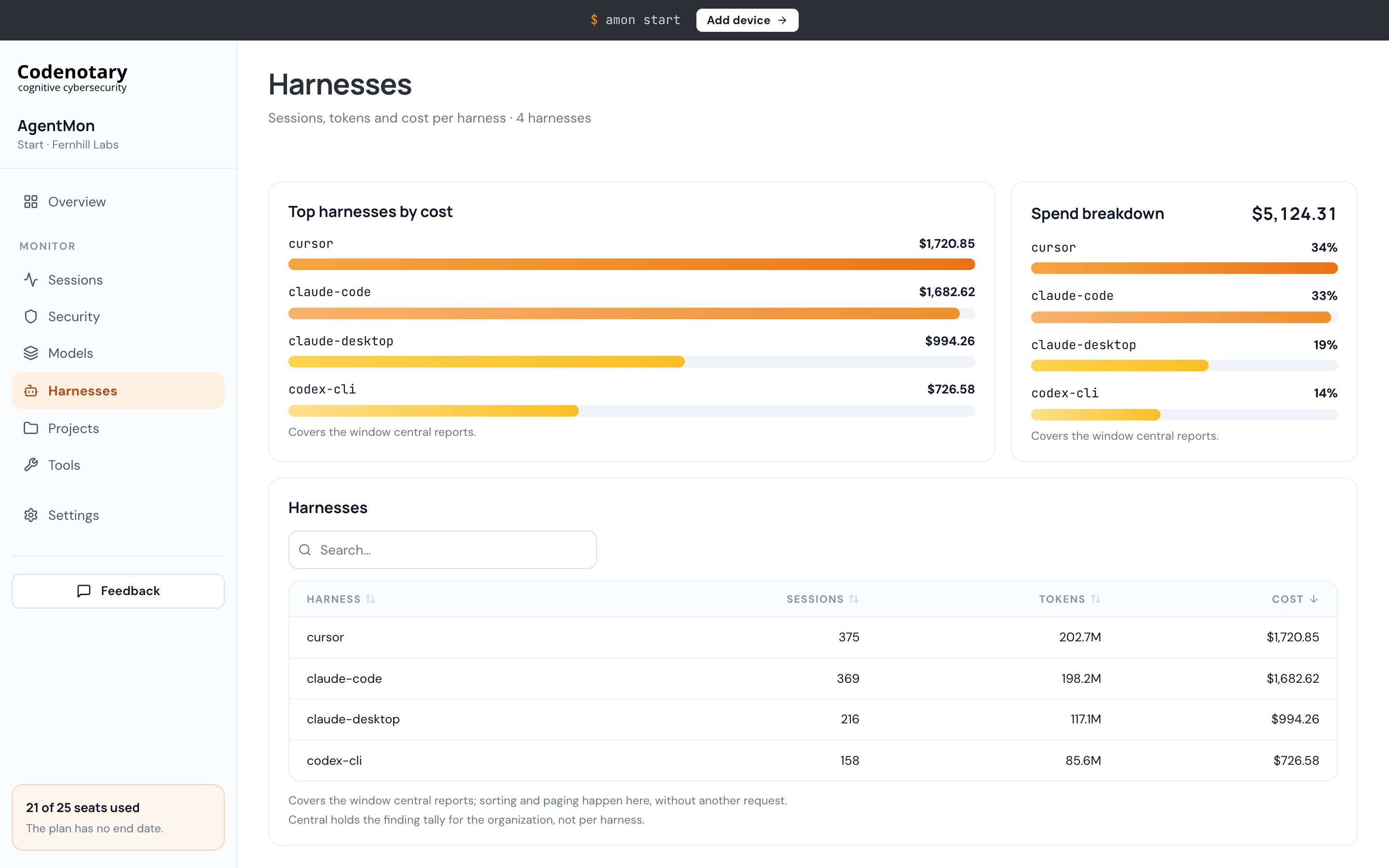
Harnesses shows sessions, tokens, and cost for each agent environment.
Connect Spending to Projects#
The Projects page groups usage by repository. Ranked charts highlight the projects with the highest cost, while percentage breakdowns show how spend is distributed across the organization.
The table lists sessions, tokens, and cost for each project. Search for a repository or sort by cost to see where the team is spending the most.
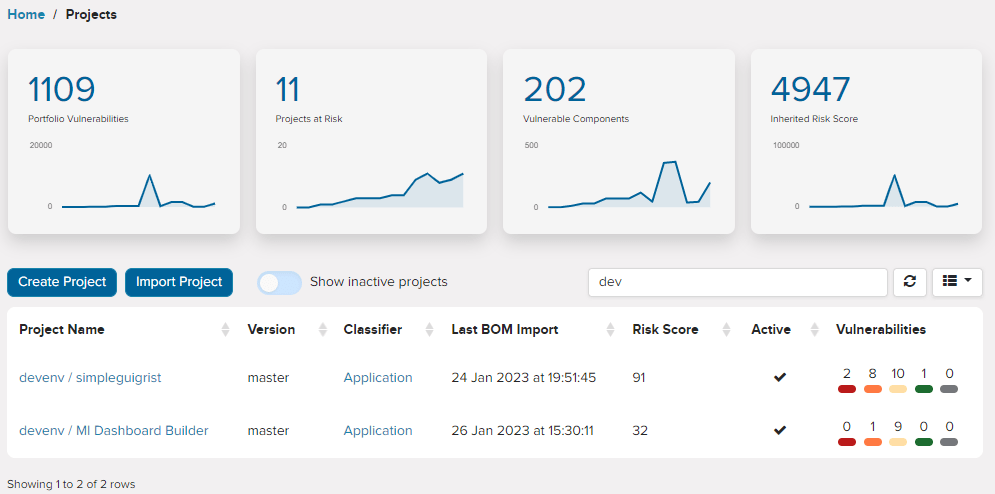
Projects shows agent usage and spending by repository.
Check Tool Usage and Failures#
The Tools page shows what agents ran, including file reads, edits, commands, repository searches, and web requests. It reports how often each tool was called and how many calls failed.
- Most-used tools highlights the six busiest tools
- Where the failures are identifies the three tools with the most errors
- The table reports calls, errors, and error rate for each tool, with search, sorting, and pagination
If a tool has a high error count or error rate, check the sessions using it. Permissions or configuration may need attention, but the cause needs to be investigated on the device.
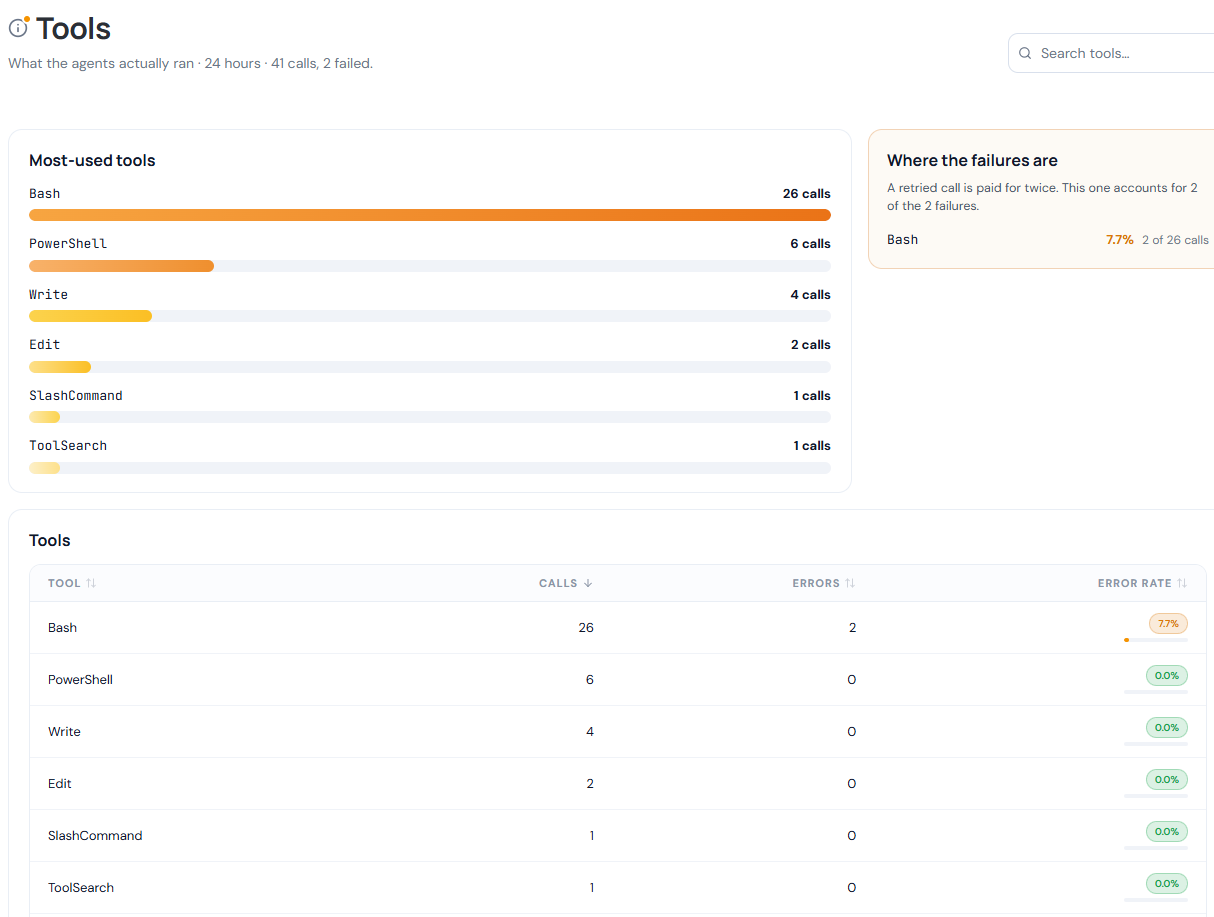
Tools lists call counts, errors, and error rates.
Manage Accounts and Devices#
Settings brings account, organization, and device administration together.
- General shows account details and role, sign-out, appearance preferences (light, dark, or follow the system), the organization’s plan, and retention dates
- Organization shows devices, people, retention, and trial information. Who is reporting lists sessions, tokens, cost, and last activity by person
- Devices provides a Fleet table with device state, operating system, binary version, architecture, enrollment details, last sync, slot information, and reclaimed status
Administrators can inspect how much data is held about a person and erase it using Erase everything. They can also contact sales to request a longer retention period. The Fleet table gives them a practical view of which devices belong to the organization and how its device slots are being used.
Check what members and administrators can access#
Organization members can see every page and every number, with pseudonyms in place of names. Administrators see the real names of people, projects, and devices, and have additional actions for connecting devices and deleting a person’s data.
Connect devices and start reporting#
Administrators use Add device to generate an invitation link. The invitation window shows its remaining uses and expiry, offers Copy link, and can issue a replacement. Recipients open AgentMon Start on their device through the invitation page.
Before the first device sends data, the dashboard presents a setup screen with options to open or download AgentMon Start and a waiting status for the first push. Sign-in uses a Codenotary account, and dashboard access requires an active organization plan.
Use Central alongside the device app#
Central helps you keep track of agent spending and usage across the team. You can compare models and projects, check tool failures, review security finding counts, and see which devices are reporting.
For conversation details and individual security findings, use AgentMon Start on the device. In the version shown here, alerts, recommendations, and cache hit-rate measurements are also kept on the device.
Getting Started#
- Create your free Codenotary account and download AgentMon Start for Windows, macOS or Linux.
- Install it and sign in with that account. The first sign-in becomes the admin.
- Keep working. The collector picks up your agents’ existing sessions, and the Overview fills in on its own.
Your first three seats are free for six months, and paid plans start at $15 per user per month.