Introduction#
Whether you’re a Docker beginner or a seasoned pro navigating complex deployments, having a reliable reference for Docker commands is essential. Docker commands serve as the building blocks for managing containers and images within your Docker environment.
This comprehensive cheat sheet is designed to streamline your Docker journey, providing clarity and efficiency in managing containers and images.

Essential Docker Commands#
Building Your Container#
Docker simplifies containerization, allowing you to hold your applications and dependencies in lightweight, portable containers. Understanding its commands is key to using it well. Here are some essential commands to get you started:
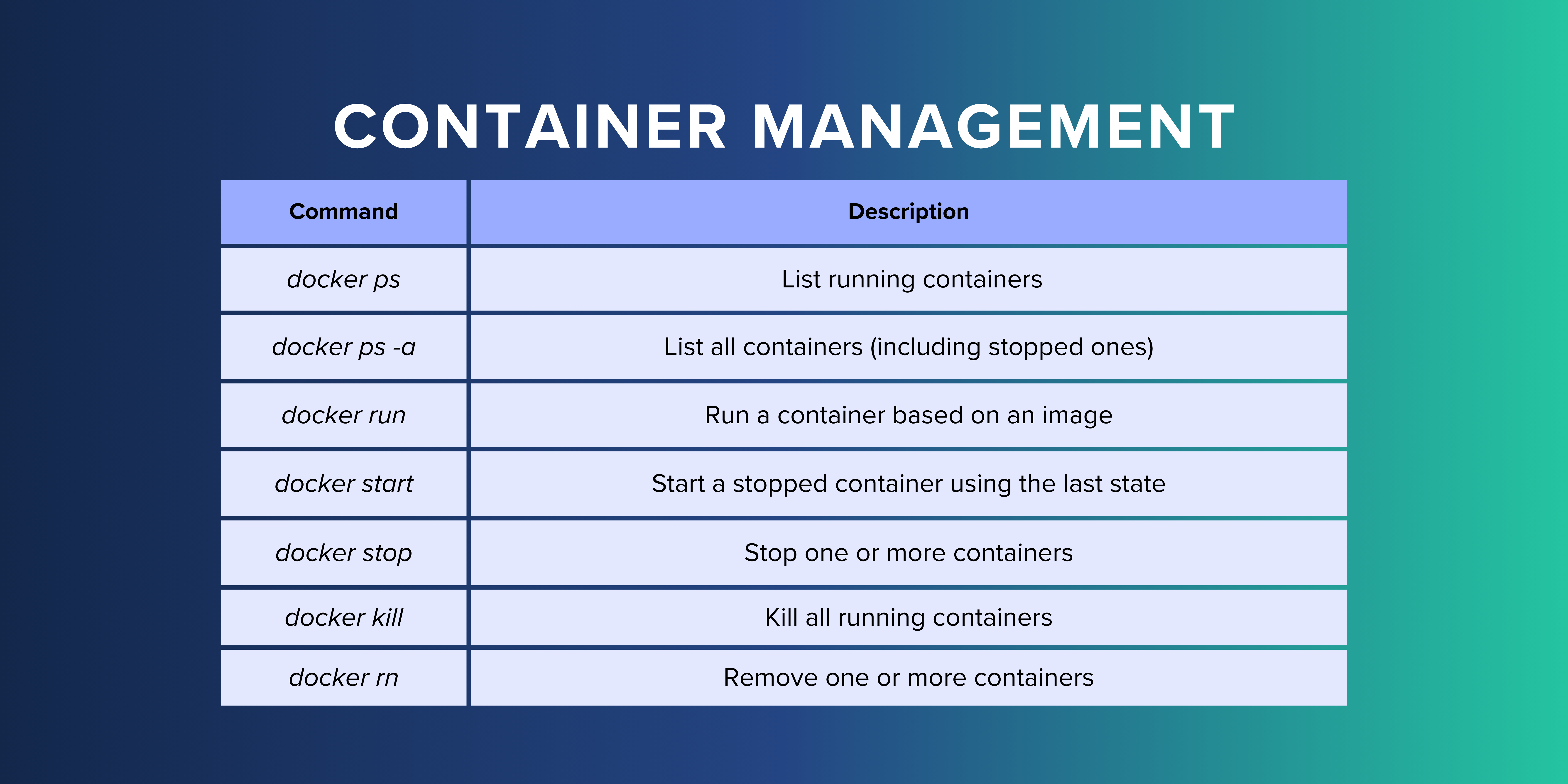
- List Running Containers: Use
docker psto view all running containers, providing insight into the status and resource usage of each container. - List All Containers: To gain a comprehensive view of all containers, including those that are stopped, employ
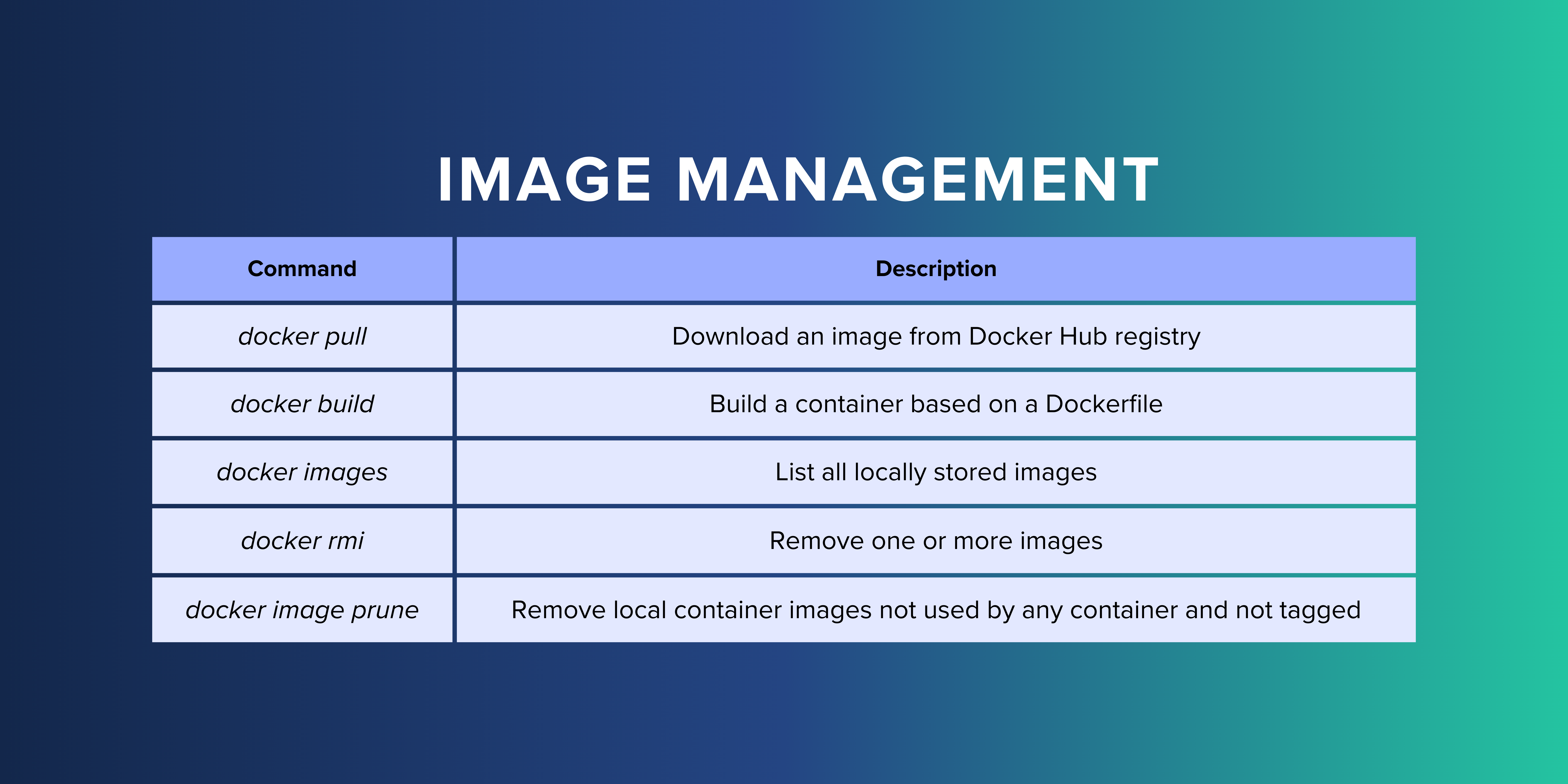
docker ps -a. This command is useful for managing both active and inactive containers. - Download Docker Images: Docker Hub serves as a central repository for Docker images. Fetch images from Docker Hub with
docker pull, leveraging the vast array of pre-built images available for various applications and services. - Build Your Container: Customize your containers to suit your specific requirements with
docker build. This command allows you to construct a container based on the instructions provided in a Dockerfile, providing flexibility and reproducibility in your container builds.
Manage Containers and Images#
Once you’ve built your containers, efficiently managing them is the next step. Here’s how:
- View Local Images: Explore all locally stored images using
docker imagesordocker image ls. This command provides visibility into the images available on your system, including their sizes and tags. - Run Containers: Launch containers from images with
docker run, specifying options such as ports, volumes, and environment variables as needed. For instance,docker run myimage -it bashinitiates a container running the Bash shell. - Monitor Container Logs: Gain insights into container behavior and troubleshoot issues by examining container logs with
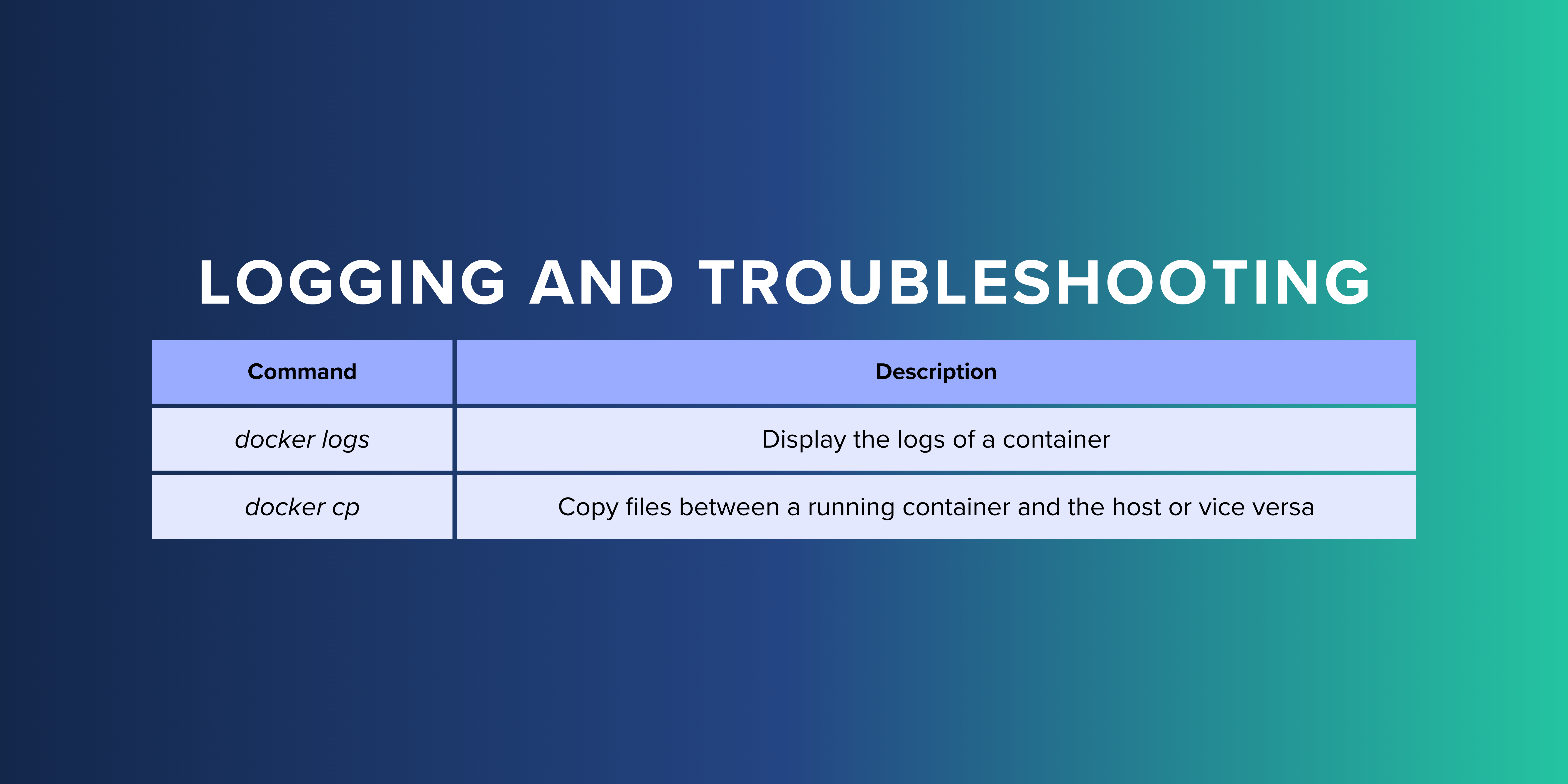
docker logs. To continuously follow log updates in real-time, utilizedocker logs -f mycontainer.
Networks and Volumes Management#
Efficiently managing networks and volumes is essential for containerized applications. Here’s how Docker helps:
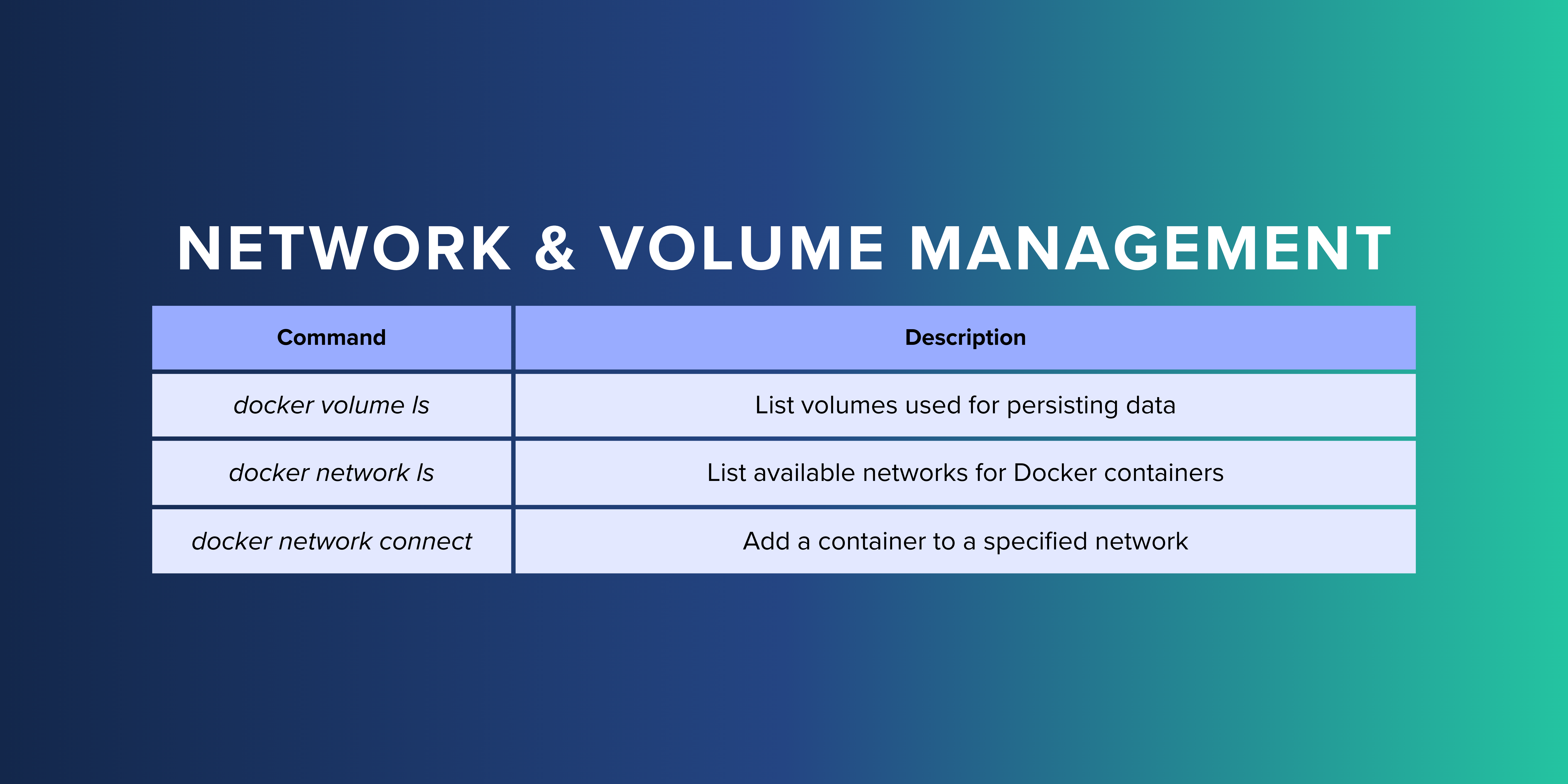
- List Networks: Discover available networks for Docker containers with
docker network ls. This command provides visibility into the networks available for container communication and connectivity. - Connect Containers: Facilitate container communication by adding them to specific networks using
docker network connect. This enables seamless interaction between containers within the same network, simplifying service discovery and communication. - Manage Volumes: Persist container data and configuration settings by managing volumes with
docker volume ls. Volumes provide a mechanism for storing and sharing data between containers, ensuring data persistence and separation of concerns.
Advanced Docker Commands#
Docker offers advanced commands for fine-tuning container behavior and resource management:
- Remove Containers and Images: Safely remove containers with
docker rmand images withdocker rmi. This command helps manage disk space by removing unused containers and images, reducing clutter on your system. - Control Container Lifecycle: Manage the lifecycle of your containers with commands such as
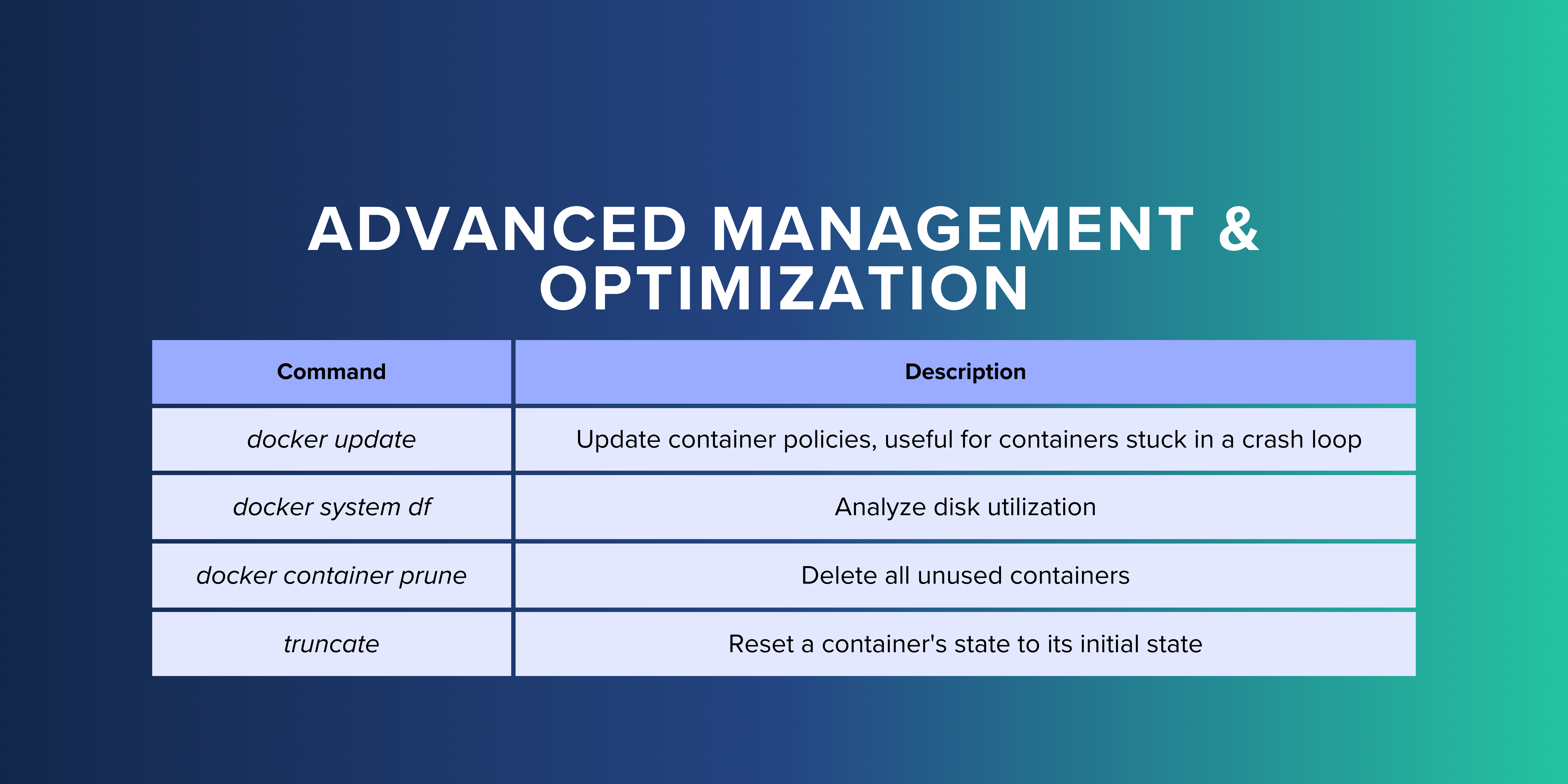
docker stop,docker start, anddocker update. These commands allow you to gracefully stop, start, or update containers, ensuring smooth operation and resource utilization. - Copy Files: Transfer files between containers and hosts using
docker cp, facilitating data exchange and synchronization between containerized applications and the host system.
Optimize Resource Usage#
Efficient resource management is critical for smooth Docker operations. Here are some useful commands:
- Check Container Size: Evaluate container sizes and resource utilization with
docker ps -s. This command provides insight into the disk space usage of containers, helping identify resource-intensive containers. - Analyze Disk Utilization: Monitor disk usage across your Docker environment with
docker system df. This command offers visibility into the overall disk utilization of containers, images, and volumes, enabling efficient resource allocation and management. - Clean Up Resources: Keep your system clutter-free with commands like
docker image prune,docker container prune, and more. These commands help remove unused containers, images, and volumes, reclaiming valuable disk space and optimizing resource utilization.
Bonus Command#
Here’s an extra command to enhance your Docker toolkit:
- Reset Container State: Reset a container’s state to its initial state with
truncate -s 0 $(docker inspect --format='' <container_name_or_id>). This command can be useful for troubleshooting container issues or restoring containers to a clean state.
Conclusion#
Your Docker journey just got smoother with these essential commands.
Have a command you think should be on this list? Let us know! We’re committed to enhancing your Docker experience. And if you’ve been exploring the Podman project, rest assured, most of these commands work seamlessly with Podman too.